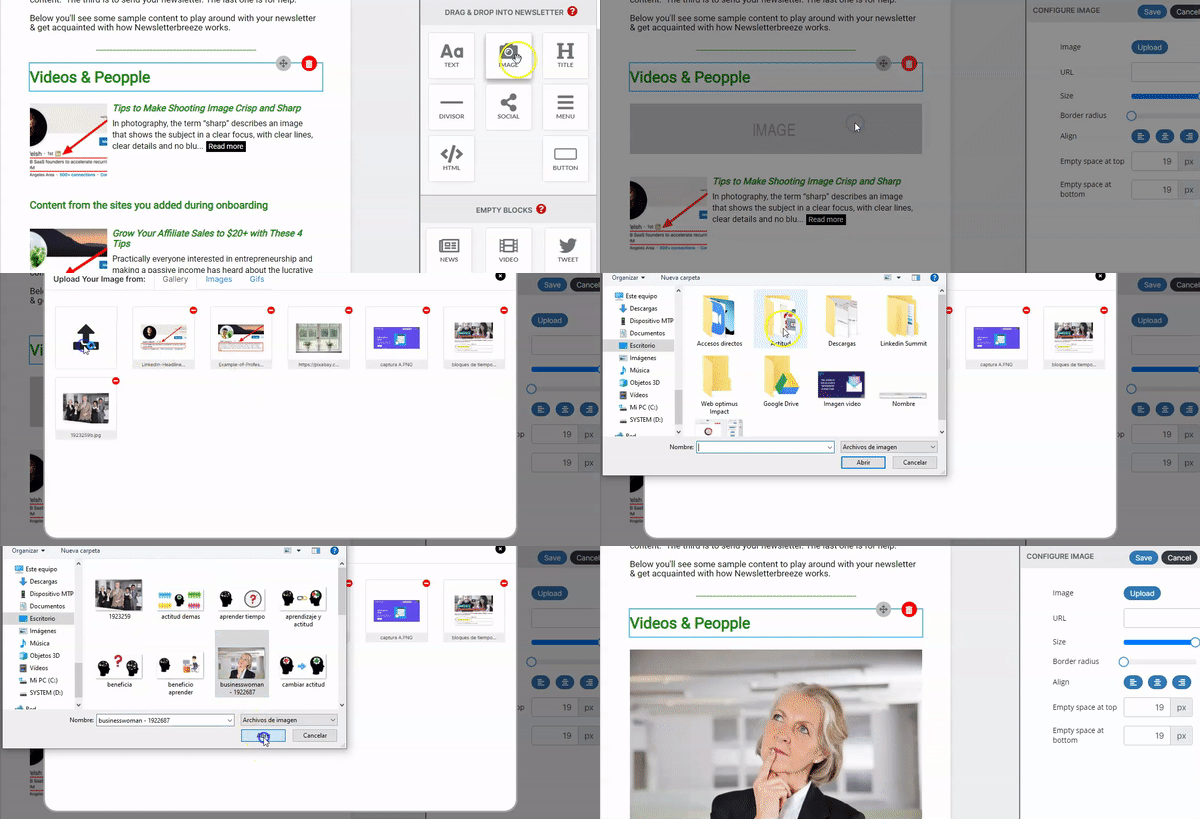
You can add images to your newsletter by doing one of these two things:
Add an image from your content tab:
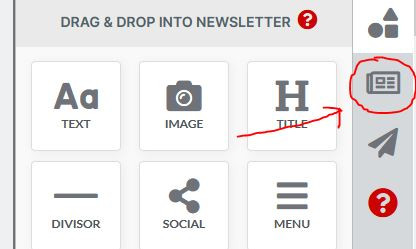
You can add one of the millions of images we have available for you in your content tab. To do this
Click on the "Content tab"
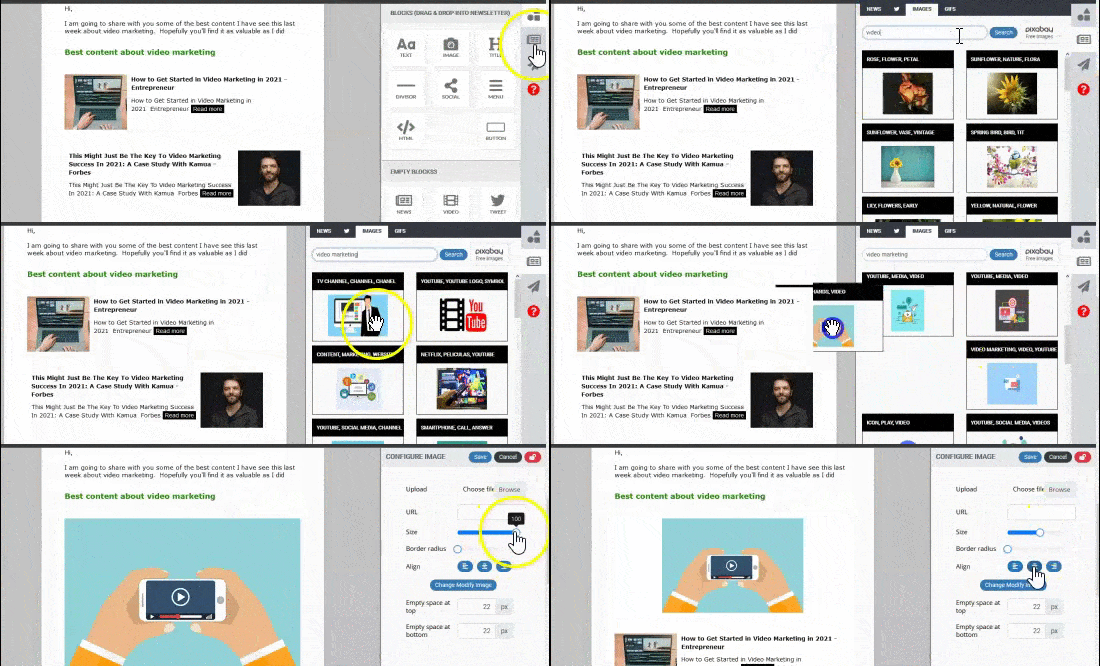
Go to the image tab & search the image you want by keyword.
Then, select the image you like and drag and drop it to your newsletter.
Upload an image to your account.
You can add an image by uploading it from your computer.
To do this, drag and drop the image element into your newsletter and place it wherever you want.
Then double click on the "Image" placeholder.
And upload the new image or select one you already have in your account.