

NewsletterBreeze requires an initial setup to bring the content your subscribers are most interested in.
You can add this content to your newsletter in different ways. The most convenient is by dragging and dropping it from the content library tab.
Before you do this, you'll need to configure the blogs and websites that have the content your subscribers are interested in. You can configure these sites from the admin or with the Chrome extension.
Add sources from the admin:
When you configure a source, Newsletterbreeze will automatically look for the RSS of the website. If it finds it, it will be added to your account.
Step by step (see image below):
Go to the content library tab.
Click on the plus sign or the "List of sources".
To add the source, enter the url, click the "Find RSS" button. When it finds the RSS, click "Create. See image below.
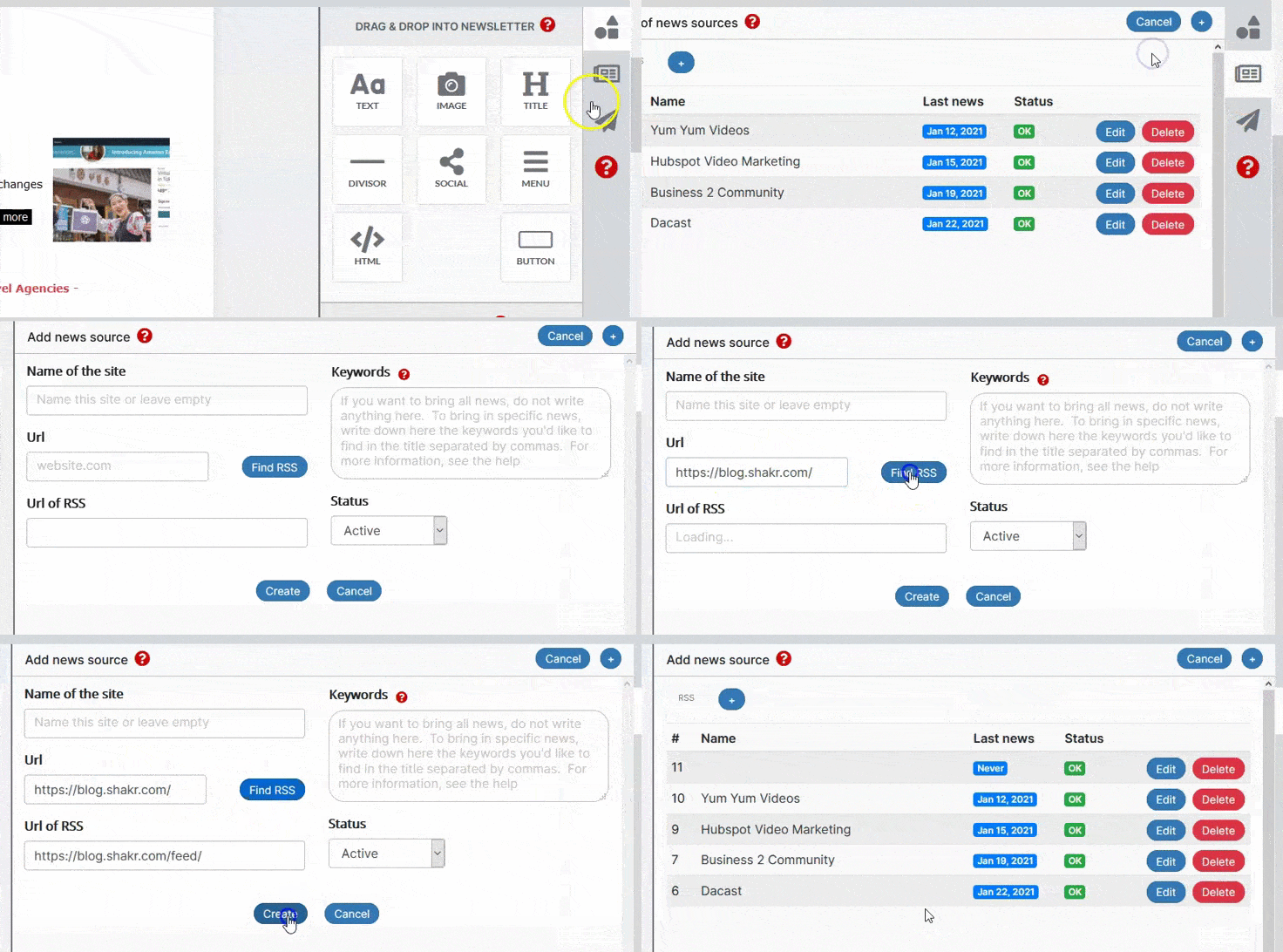
By following these steps, you'll configure about 50-60% of the sources you want. If NewsletterBreeze doesn't automatically find the RSS, you can try to find it manually.
Add sources with the Chrome extension:
With the Chrome extension, you can add individual articles you find while browsing the int
ernet. You can also add full sources. If you do the latter, every time the website publishes news, they will be brought to your account
To do this, you'll need to install first the Chrome extension. You'll find it here. Then, you'll need to follow the steps we explain here.
